Monday, 3 March 2025

{Do you know} Allow individuals to reenter a one-time dynamic segment journey in Dynamics 365 Customer Insights

Hello Everyone,


Today I am going to share my thoughts on allowing individuals to reenter a one-time dynamic segment journey in Dynamics 365 Customer Insights.


Let's get's started.


In Dynamics 365 Customer Insights - Journeys, a one-time dynamic segment journey typically processes contacts only once. However, you can configure it to allow individuals to reenter the journey if they meet the criteria again.


A retail business runs a 'Win-Back Campaign" for inactive customers who haven't made a purchase in the last 90 days. If a customer makes a purchase and later becomes inactive again after another 90 days, they should reenter the journey and receive a new promotional email.


How to set up:


1. Create a Dynamic Segment:

Define criteria such as "Last Purchase Date is more than 90 days ago".

The segment dynamically updates as customers meet the criteria.


2. Enable Reentry in the Journey.

In the Journey Settings, enable  "Allow Reentry".

Specify a cool down period (e.g., 90 days) before the same contact can reenter.


3. Journey Execution:

When a customer meets the criteria, they receive the email.

If they later become inactive again, they automatically reenter and go through the journey again.


Benefits:

Increase Engagement - Customers get repeated opportunities to respond.

Automates Follow - Ups - No manual intervention is needed.

Enhances Personalization - Ensures timely re-engagement based on real -time behavior.


This setup ensures that individuals continue to receiev relevant messages whenever they qualify for the journey again.


That's it for today.


I hope this helps.

Malla Reddy Gurram(@UK365GUY)
#365blogpostsin365days


Sunday, 2 March 2025

{Do you know} Generate leads that link to an existing contact in Dynamics 365 Customer Insights

Hello Everyone,


Today I am going to share my thoughts on generating leads that is linked with an existing contact in Dynamics 365 Customer Insights.


Let's get's started.


In Dynamics 365 Customer Insights - Journeys, businesses can generate leads while ensuring they are linked to an existing contact, preventing duplicate records and maintaining a unified customer view.


How it works?


1. Lead Capture:


Lead are generated through web forms, event registration, email interactions, or manual entry.
Capture lead data includes name, email, phone number, or company details.


2. Matching with Existing Contacts:

  • Dynamics 365 automatically checks for existing contacts in the system based on predefined criteria (e.g., email or phone number).
  • If a match is found, the lead is linked to the existing contact, ensuring continuity in engagement history.

3. Lead Processing & Qualification:

  • The lead is nutured through marketing campaigns, tracked interactions, and sales follow-ups.
  • Once qualified, it can be converted into an opportunity for sales teams.


Benefits:


  • Prevents Duplicate Date - Ensure a single customer record with linked interactions.
  • Enhanced Lead Tracking - Sales and Marketing teams get a 360-degree customer view.
  • Streamlins Sales Handoff - Leads are linked to contacts, enabling personalized follow -ups.

By automating lead-contact linking, organizations improve data accuracy, optimize lead nuturing, and enhance customer engagement within Dynamics 365.


That's it for today.


I hope this helps.
Malla Reddy Gurram(@UK365GUY)
#365blogpostsin365days


Saturday, 1 March 2025

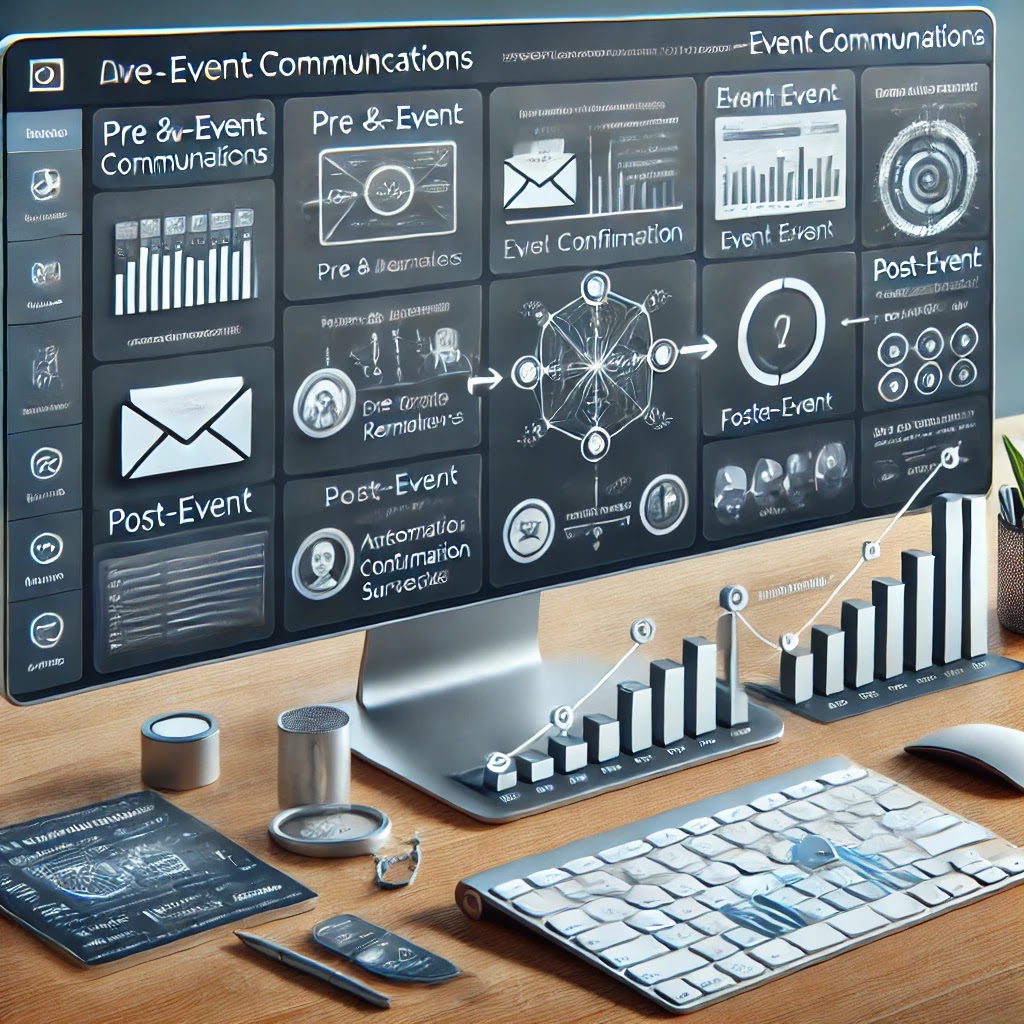
{Do you know} Set up and execute pre and post event communications in Dynamics 365 Customer Insights

Hello Everyone,


Today  I am going to share my thoughts on setting up and execute pre and post event communications in Dynamics 365 Customer Insights.


Let's get's started.


Dynamics 365 Customer Insights - Journeys allows businesses to automate event communications before and after an event to maximize engagement and improve attendee experience. This process is managed through Real-Time Journeys, Segmentation and Automated Messaging.


1. Pre-Event Communications (Before the Event)


Objective: Increase registration rates, reduce dropouts, and ensure attendees are well-informed.


Steps to Set Up Pre-Event Communications:


1. Create a Customer Journey for Event Attendees

Go to Real-Time Journeys in Dynamics 365

Select New Journey and define the event audience (e.g registered attendees,  VIP guests).


2. Automate Confirmation Emails & Calendars Invites

After registration, an automated emails is sent with:


Event details (date, time, location, virtual link).

A calendar invite for easy scheduling.


3. Schedule Reminder Emails or SMS


1 week before: Send an email with the event agenda and speaker details.

1 day before: A reminder email or SMS notification to minimize no-slow.


4. Send Pre-Event Surveys(Optional)

Collect attendee preferences via Microsoft Forms integration.

Segment responses to personalize the event experience.


2. Post Event Communications (After the Event)


Objective: Gather feedback, nuture leads, and continue engagement after the event.


Steps to Execute Post-Event Communications:

1. Send a Thank-You Email


  • Immediately after the event, an email is sent to thank attendees.
  • Include event highlights, key takeaways, or special offers.


2. Distribute Event Recordings & Materials

  • Provide recorded sessions, presentation slides and other resources via a link.


3. Collect Feedback with Post -Event Surveys

  • Automate a survey email asking attendees for feedback on the event.
  • Use Power Automate to store survey results in Dataverse for future analysis.


4. Nuture Leads Based on Event Engagement

  • Segment attendees based on participation levels (e.g., active participants vs passive viewers).
  • Enroll engaged attendees into a follow-up nuture journey, offering product demos or next steps.


3. Execution & Automation Using Dynamics 365


  • Use Pre Built Event Templates: Simplify the setup process with templates for common event journeys.
  • Trigger - Based Automation:  Emails and messages are sent automatically based on attendee actions.
  • Real-Time Analytics & Reports: Track open rates, attendees trends and engagement insights in Power BI.


Benefits of Automated Pre & Post -Event Communications


High Attendance & Engagement - Reminders and pre-event content keep attendees informed.


Seamless Experience - Automation ensures no manual follow-ups are needed.


Improved Event ROI - Follow - ups convert attendees into leads, maximizing post-event opportunities.


By setting up pre-event and post-event communications in Dynamics 365 Customer Insights, businesses can create a fully automated, personalized event experience that drives better engagement and long-term relationships.


That's it for today.


I hope this helps.

Malla Reddy Gurram(@UK365GUY)
#365blogpostsin365days

Friday, 28 February 2025

{How to}Maximize event capactiy with waitlist registrations in Dynamics 365 Customer Insights

Hello Everyone,


Today I am going to share my thoughts on maximizing the event capacity with waitlist registration in Dynamics 365 Customer Insights.


Let's get's started.


The Waitlist Registration  feature in Dynamics 365 Customer Insights  - Journeys helps organizations manage event capacity efficiently by allowing attendees to join a waitlist when an event reaches full capacity. If a spot becomes available, waitlist attendees can be automatically registered.


Key Features:


Automatic Waitlist Management: Attendees who try to register for a full event can be added to a waitlist.


Real-Time Availability Updates: If a registered attendees cancels, the system automatically moves the next person from the waitlist into the event.


Capacity Control: Helps prevent overbooking while ensuring maximum attendance.


Custom Notifications: Sends automated emails to waitlisted participants when they are moved to confirmed registration.


Benefits:

Optimized Event Attendance: Ensures events are always at full capacity.

Improved  Attendee Experience: Keep interested attendees engaged with updates on availability.

Automation & Efficiency - Reduces manual tracking of cancellations and open spots.


This feature streamlines event management, ensuring that all available slots are utilized effectively whil maintaining a seamless registration experience for attendees.


That's it for today.

I hope this helps.
Malla Reddy Gurram(@UK365GUY)
#365blogpostsin365days

{Do you know} Create event portals with event and registration details using Power Pages in Dynamics 365 Customer Insights

Hello Everyone,


Today I am going to share my thoughts on creating the event portals with event and registration details using Power Pages in Dynamics 365 Customer Insights.


Let's get's started.


With Power Pages in Dynamics 365 Customer Insights  - Journeys, organizations can create custom event portals to manage event information, session details, speaker profiles and attendee registrations in a seamless and branded experience.


Key Feature:


1. Event Management Integration:


Display event details, Schedules, and session information dynamically from Dynamics 365 Customer Insights - Journeys.

Automatically sync updates to ensure attendees have the latest event information.


2. Seamless Registration & Attendees Management:


Embed registration forms directly into the event portal to allow easy sign-ups/

Enable attendees to manage their profiles, session selections, and event preferences.


3. Customization & Branding:


Use Power Pages Studio to customize the look and feel of the event portal to align with your organization's brand.

Host the portal on your domain or integrate it with existing web properties.


4. Real - Time Insights & Engagement:


Track attendee sign -ups and engagement in real-time through event dashboards.

Use analytics to optimize event planning and follow -up engagement.


How to Set Up an Event Portal:

Enable Power Pages for Events in Dynamics 365 Customer Insights.

Customize the event website by adding event details, session listings and registration forms.

Publish the portal and share the link with potential attendees.

Monitor registrations and engagement via event dashboards.


Benefits:


Enhanced Attendee Experience - Easy event registration and personalized session selection.

Efficient Event Planning: Automated event updates and real-time tracking.


Custom Branding: Fully customizable portal to match your organization's theme.


This feature allows organizations to deliver professional, scalable event experiences while simplifying registration and event management workflows in Dynamics 365 Customer Insights.


That's it for today.


I hope this helps.

Malla Reddy Gurram(aka @UK365GUY)
#365blogpostsin365days


Wednesday, 26 February 2025

{Do you know} Create an event portal on your own website in Dynamics 365 Customer Insights

Hello Everyone,


Today I am going to share my thoughts on creating an event portal on your own website in Dynamics 365 Customer Insights.


Let's get's started.


Creating an event portal on your website using Dynamics 365 Customer Insights - Journeys allows you to effectively manage and promote events, providing attendees with seamless access to event details and registration forms. Here's a concise guide to setting up your event portal.


1. Deploy the Event Portal Using Power Pages:


Utilize Power Pages Templates: Leverage out-of-the-box templates to swiftly create a centralized hb where customers can view event details, session specifics, and speaker information.


Customization: Use Power Pages Studio to align the portal's design with your brand identity, ensuring a cohesive user experience.


2. Integrate Event Information:


Dynamic Content Fetching: Configure the portal to automatically retreive event data, including schedules and speaker bios. directly from Dynamics 365 Customer Insights - Journeys.


Real-Time Updates: Any changes made to event details within Dynamics 365 are instantly reflected on the portal, keeping attendees informed.


3. Enable Seamless Registration:


Embedded Registration Forms: Incorporate registration forms directly into your event pages, allowing attendees to sign up without leaving the site.


Account Management: Provide options for attendees to create accounts, manage their profiles and view their event schedules.


4. Customize and Host the Portal:


Flexible Hosting Options: Choose to host the portal on Power Pages or deploy it on your own server, depending on your organization's needs.


Brand Consistency: Customize the portal's appearance, including logos, color schemes and layouts to ensure it reflects your brand's aesthetics.


By integrating an event portal with Dynamics 365 Customer Insights - Journeys, you enhance attendee engagement and streamline event management, all while maintaining control over your brand's presentation.


That's it for today.

I hope this helps.
Malla Reddy Gurram(@UK365GUY)
#365blogpostsin365days

Tuesday, 25 February 2025

{Do you know} Accelerate journey creation using journey templates on Dynamics 365 Customer Insights

Hello Everyone,


Today I am going to share my thoughts on the accelerate journey creation using journey templates on Dynamics 365 Customer Insights.


Let's get's started.


In Dynamics 365 Customer Insights - Journeys, you can use journey templates to streamline and accelerate the creation of customer journeys for common use cases like lead nurturing, onboarding, or product promotions.


Templates provide a pre-configured framework that you can customize, saving you time and effort when creating new journeys.


How it works:


1. Accelerate Journey Templates:

Go to Customer Insights. > Journeys in the application.

Choose from a variety of pre-built templates(e.g "welcome email series", "lead nurturing", or "abandoned cart recovery").


2. Customize the Template:

Modify Step: Each template includes predefined steps like email sends, wait conditons, and decision points. You can easily adjust these steps to suit your specific business requirements.


Add Segments: Customize the template's audience by adding or modifying customer segements based on target market or campaign.


Edit Emails and Content: Replace the default content in email sends with your own branding, copy and links.


3. Save and Deploy:

After customization, you can save the journey template as a new unique journey and launch it to your audience. The system automatically sets up the flow, triggers and actions.


Example: Lead Nurturing Journey Template:


Start with a Lead Nuturing template where the first step is an email introduction to your product.

Add a wait step for 3 days, followed by a follow-up email to re-engage the lead.

Include a decision point that checks if the lead clicked on the email link. If yes, send a thank you email, if no, send a discount offer.


Benefits:

Faster Setup: Templates provide a predefined structure, cutting down the time to create new journeys.


Consistency: Templates ensure your marketing efforts are consistent and follow best practices.

Customization: Easy to tweak steps, emails and audience criteria to fit specific campaign goals.


In essence, journey templates in Dynamics 365 Customer Insights help you quickly design and implement customer journeys while maintaining the flexibility to customize them for different business needs.


That's it for today.

I hope this helps.
Malla Reddy Gurram(aka @UK365GUY)
#365blogpostsin365days